Creating your first game
This is an intro tutorial that will cover the basic concepts and make a very simple Chrome Dino - ish game. For setting up KAPLAY development, see the Installation Guide.
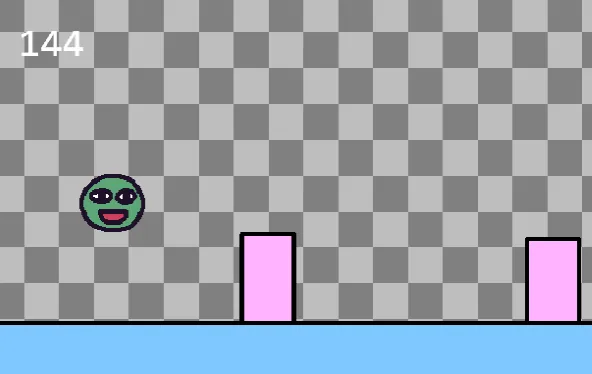
You can find the source code at the end or in the KAPLAYGROUND!
Let’s start by initializing the context with the kaplay() function.
kaplay();This should give you a blank canvas with a nice checkerboard pattern like this
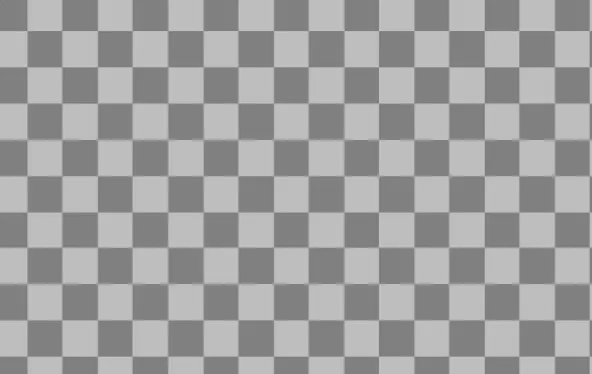
Then let’s add some stuff to screen, like an image. Copy this piece of code to your editor and see what happens when you run the game.
// load a sprite "bean" from an image
loadSprite("bean", "sprites/bean.png");

// add something to screen
add([sprite("bean"), pos(80, 40)]);
Introducing Frog the “Bean”! A happy frog that enjoys life. You’ll see Bean a lot around here.
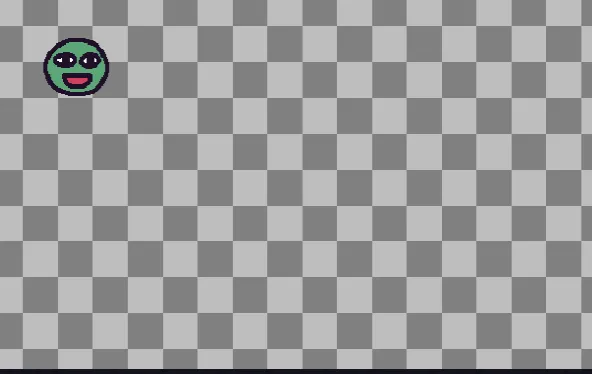
Before explaining what this code does, let’s try adding some more stuff to it and see what happens:
// add something to screen
add([sprite("bean"), pos(80, 40), scale(3), rotate(30), color(0, 0, 255)]);
Feel free to tweak some parameters and see how it affects what happens on screen.
In KAPLAY, each game object is composed from multiple components. Each component will give the game obj certain functionality.
A game object is basically any character in the game, like the player character, a bullet, a rock, a cloud
For example, some component might decide what’s the shape, some components might decide if it should be subject to gravity, some components might decide what color it is, some component might decide how long it can live.
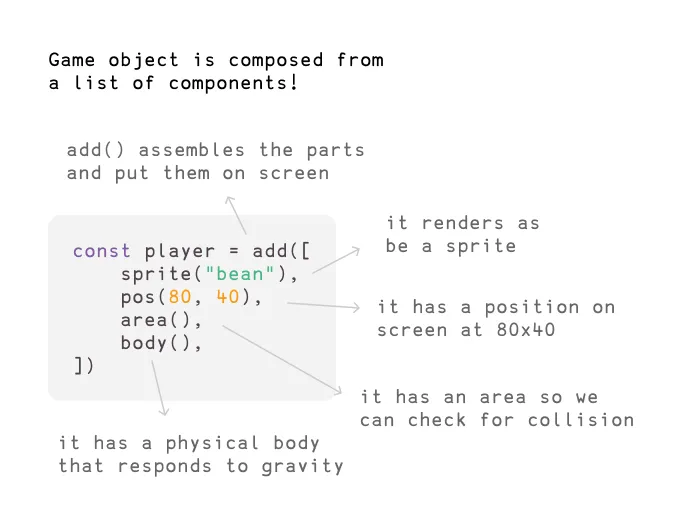
If you’re having trouble understanding, consider this Human Bean:
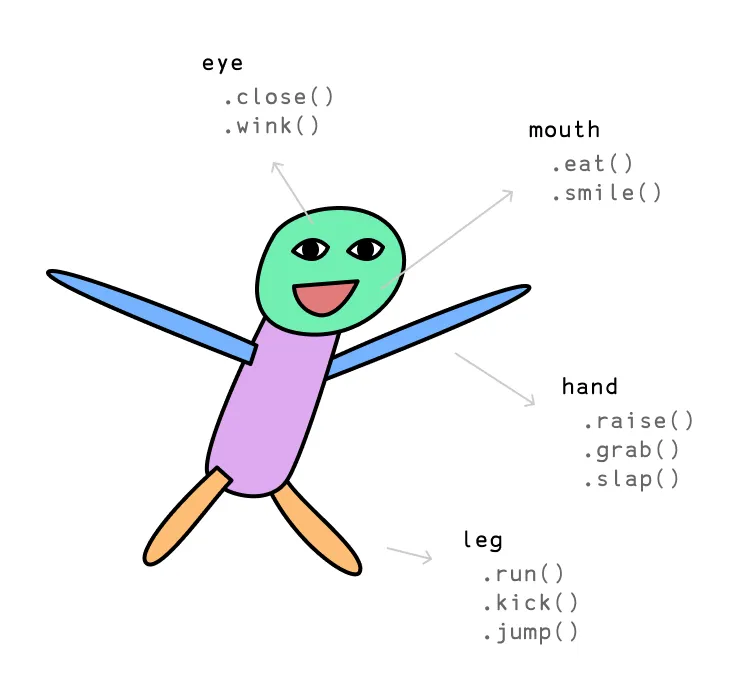
Humans are also composed from a list of components, each component providing
different functionalities, which is exactly what a component means in KAPLAY.
add() is the function you use to assemble all the components into a game
object in KAPLAY:
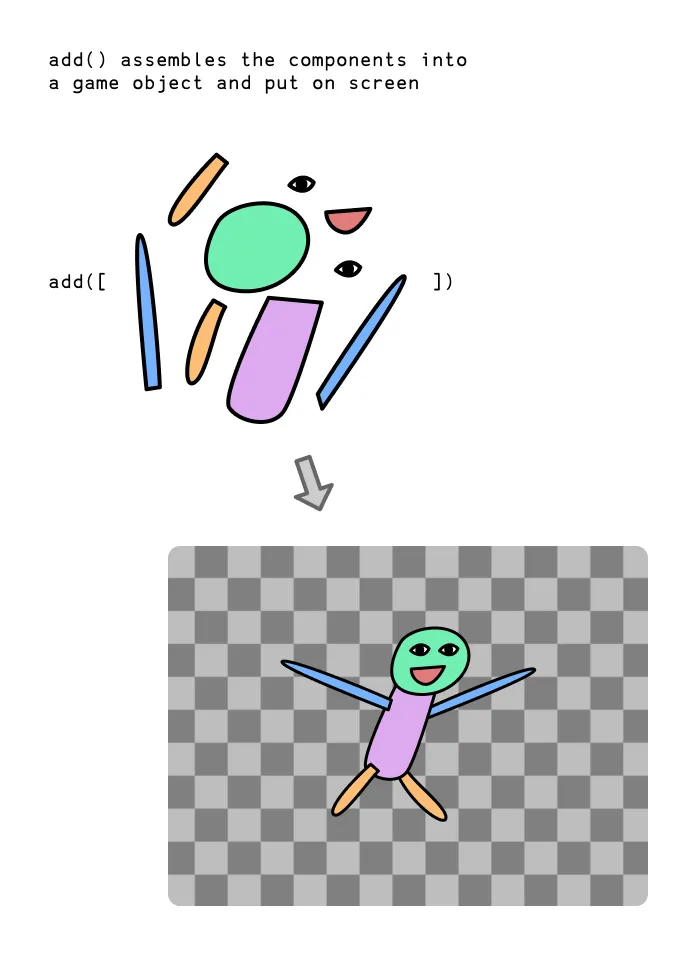
It’s actually kinda like playing with lego pieces! Let’s keep this in mind and start making the actual player character in our game:
// putting together our player character
const player = add([sprite("bean"), pos(80, 40), area(), body()]);

// .jump() when "space" key is pressed
onKeyPress("space", () => {
    player.jump();
});
Let’s see what components we’re using:
sprite()makes it render as a sprite, with the"bean"sprite we just loaded withloadSprite()pos()gives it a position on screen, at X: 80 Y: 40area()gives it a collider area, so we can check for collisions with other characters later onbody()gives it a physical body, making it fall due to gravity and giving it the ability to jump
We’re also testing out our player character with a little interaction here.
onKeyPress() registers an event that runs every time the user presses a certain
key. In this case, we’re calling the .jump() method (which is provided by the
body() component) when "space" key is pressed.
But before your player can jump, you need to set up gravity at the beginning.
//Setting up gravity
setGravity(1600);setGravity() define the gravity of your world, everything with a body() will be falling down.
Now that the gravity is set up, go ahead and slap that space key!
With the body() component, our Player is going to keep falling into oblivion if
we don’t hit “space” key enough. Let’s add a static platform for Player to land
on.
// add platform
add([
    rect(width(), 48),
    pos(0, height() - 48),
    outline(4),
    area(),
    body({ isStatic: true }),
    color(127, 200, 255),
]);
Woah! That looks like a lot, but it’s actually really simple, let’s look at each component
rect()renders a rectangle. It accepts 2 arguments, the width and height, which we give it the game width (returned bywidth()) and height of 48 pixelspos()position. We give it a x: 0 and y:height() - 48so it sits right on the bottom of the screenoutline()renders an outline of4pixelsarea()adds a collider to itbody({ isStatic: true })the object won’t move, and all non static objects won’t move past itcolor()makes it render with an RGB color, we give it a R: 127 G: 200 B: 255 which is a blue-ish color
Pretty straightforward! Refresh the game and you should see our Player is now safely landed on a static blue platform.
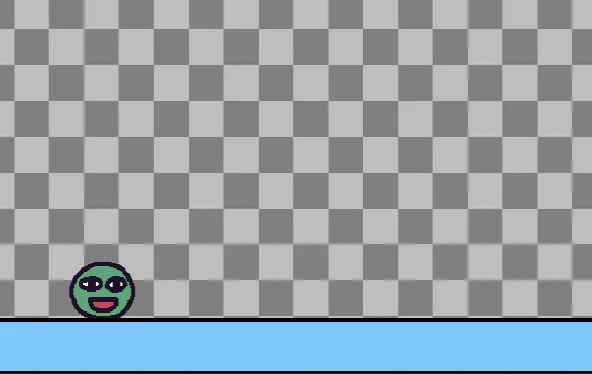
Let’s also make sure our Player can only jump when isGrounded.
onKeyPress("space", () => {
    if (player.isGrounded()) {
        player.jump();
    }
});
isGrounded() is another function provided by body() component which checks
if currently landed on a platform. Now our game is slightly more physically
correct.
Bean loves challenges. Let’s start adding in obstacles to jump over! Time to build a game object from components again.
// add tree
add([
    rect(48, 64),
    area(),
    body({isStatic: true}),
    outline(4),
    pos(width(), height() - 48),
    anchor("botleft"),
    color(255, 180, 255),
    move(LEFT, 480),
]);
A lot of these we have already seen you should know what they do, but some new ones here:
anchor()defines the origin point of positioning. By defaultpos()defines the top left point of the shape, here we change it to the bottom left point because we want it to be just above the platform, so we give it Y position ofheight() - 48move()makes it move towards a direction infinitely. In this case we move towards theLEFTby480pixels per second
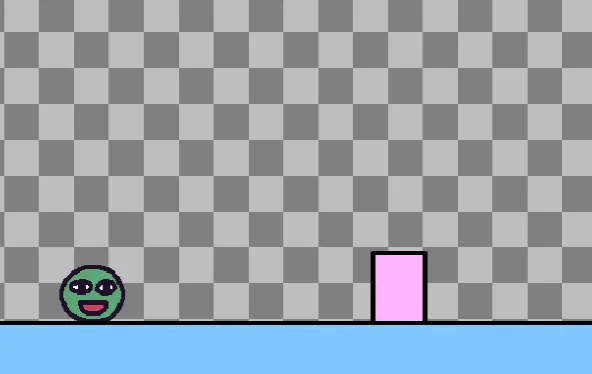
Challenger appears! Try jumping over it.
Oh but it’s.. not really fun! Or rather, there’s no feedback to whether we managed to jump over the ramp. Let’s add some feedback.
To do this we’ll need to check for collision between the two.
First we’ll need to give the tree a tag. Any game object can have any number of tags, they’re kinda like components but much more light weight. We often use tags to quickly describe behaviors for a group of objects.
// add tree
add([
    rect(48, 64),
    area(),
    body({isStatic: true}),
    outline(4),
    pos(width(), height() - 48),
    anchor("botleft"),
    color(255, 180, 255),
    move(LEFT, 480),
    "tree", // add a tag here
]);
To add a tag we simply put a string in the component array. Then we can check for collision between Player and any object with tag “tree”.
player.onCollide("tree", () => {
    addKaboom(player.pos);
    shake();
});
.onCollide() is a function provided by the area() component. It registers an
event that runs every time the object collides with another object with a
certain tag, passed by the first argument. In this case, it means every time
Bean collides with another game obj with tag "tree", run the callback.
Inside the callback we’re doing 2 things. addKaboom() spawns an explosion
animation, it accepts 1 argument the position to spawn, which we pass in the
player’s current position with .pos (which is provided by the pos()
component).
The second thing is shake(), which just shakes the screen.

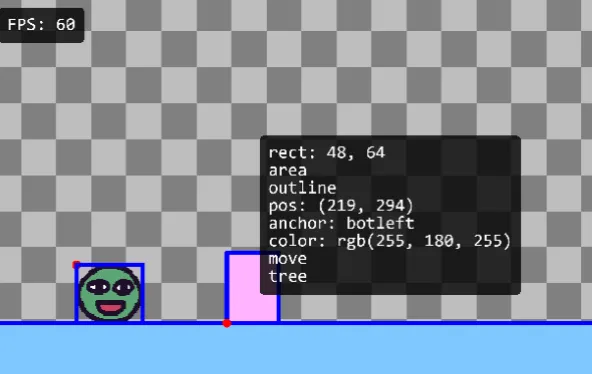
Here’s a trick. Try pressing F1 in the game. See all the blue outlines? This
is inspect mode and it’ll show all the bounding boxes of every game obj with
area() component. Also try hovering over each game object to inspect its
states like position and tags.
If you’re using Chrome, F1 doesn’t work, you can add a debugKey when calling kaplay() at the start.
kaplay({
    debugKey:"w"
});
Now it’s time to add more trees. How can we keep them spawning constantly?
Let’s try the loop() function, which performs an action every x seconds.
loop(1, () => {
    // add tree
    add([
        rect(48, 64),
        area(),
        body({isStatic: true}),
        outline(4),
        pos(width(), height() - 48),
        anchor("botleft"),
        color(255, 180, 255),
        move(LEFT, 480),
        "tree", // add a tag here
    ]);
});
Let’s just put the tree spawning code inside a loop(). The first argument is the
time in seconds here, so it’ll spawn a tree every 1 second.
Sick! Lots of trees coming to you now. Now we already have most of the game mechanics done. Some improvements we can make:
- It might be better if trees all have different random heights. We can use
rand()to assign different value to the tree’s rect height:
rect(48, rand(24, 64)),- It’ll be more fun if the trees spawn at different intervals. We cannot do
that with
loop(), but we can achieve that with recursivewait()s, which wait for x seconds before executing some code.
function spawnTree() {
    add([
        // the tree components
    ]);
    wait(rand(0.5, 1.5), () => {
        spawnTree();
    });
}

spawnTree();
See? We’re calling spawnTree() recursively / endlessly, with a random interval
between 0.5 - 1.5 seconds each time.
Before adding a score counter, let’s actually complete the game loop first by
sending the bean to a game-over scene when they hit a tree. We can achieve this
with KAPLAY’s scene() system.
scene("game", () => {
    add([sprite("bean")]);
});

scene("lose", () => {
    add([text("Game Over")]);
});

go("game");
Consider this example above, we’re declaring 2 scenes here, “game” and “lose”.
The function we pass to scene() is the function to run when this scene is
activated (by go()). In this case, we want to add a “bean” sprite on “game”
scene, and want to add a “Game Over” text on the “lose” scene.
Let’s first move everything game code we have into a scene.
kaplay();
loadSprite("bean", "sprites/bean.png");

scene("game", () => {
    // add gravity
    // add player
    // add platform
    // add function spawnTree()
    // spawn trees
});

go("game");
Try this, this shouldn’t change any of your game’s content.
Then we can add a “lose” scene independent to your core game content here.
scene("lose", () => {
    add([text("Game Over"), pos(center()), anchor("center")]);
});
So in the “lose” scene, we’ll add a piece of text in the center that says “Game Over”
(text() is a component that renders text). Go ahead and go to this scene when
the player collides with a tree:
player.onCollide("tree", () => {
    addKaboom(player.pos);
    shake();
    go("lose"); // go to "lose" scene here
});
Ok! Now we’ve arrived at the final part of our game: score counter.
let score = 0;
const scoreLabel = add([text(score), pos(24, 24)]);
Here we’ve declared a number variable to store the score, and added a game obj
with text() component to display the text.
Let’s keep it simple and just use time as score.
// increment score every frame
onUpdate(() => {
    score++;
    scoreLabel.text = score;
});
We can use the onUpdate() function, which takes a function and runs it every
frame. In this case, we’re going to increment the score and update the score
label’s text every frame.
Now let’s display the score in the losing scene by passing score to the scene
and add the core loop to return to the game when pressing a key.
scene("game", () => {
    //code
    player.onCollide("tree", () =>{
        addKaboom(player.pos);
        shake();
        go("lose", score);
    });
    //code

});

scene("lose", (score) =>{
    add([text("Game Over"), pos(center()), anchor("center")]);

    // display score
    add([
        text(score),
        pos(width() / 2, height() / 2 + 80),
        scale(2),
        anchor("center"),
    ]);

    // go back to game when space is pressed
    onKeyPress("space", () => go("game"));
    onMousePress(() => go("game"));
})
Full game code here:
You can also play the result in the KAPLAYGROUND!
import kaplay from "kaplay";
import "kaplay/global"; // comment if you want to use the k. prefix

const FLOOR_HEIGHT = 48;
const JUMP_FORCE = 800;
const SPEED = 480;

// initialize context
kaplay();

// load assets
loadSprite("bean", "sprites/bean.png");

scene("game", () => {
    // define gravity
    setGravity(1600);

    // add a game object to screen
    const player = add([
        // list of components
        sprite("bean"),
        pos(80, 40),
        area(),
        body(),
    ]);

    // floor
    add([
        rect(width(), FLOOR_HEIGHT),
        outline(4),
        pos(0, height()),
        anchor("botleft"),
        area(),
        body({ isStatic: true }),
        color(127, 200, 255),
    ]);

    function jump() {
        if (player.isGrounded()) {
            player.jump(JUMP_FORCE);
        }
    }

    // jump when user press space
    onKeyPress("space", jump);
    onMousePress(jump);

    function spawnTree() {
        // add tree obj
        add([
            rect(48, rand(32, 96)),
            area(),
            body({isStatic: true}),
            outline(4),
            pos(width(), height() - FLOOR_HEIGHT),
            anchor("botleft"),
            color(255, 180, 255),
            move(LEFT, SPEED),
            "tree",
        ]);
        // wait a random amount of time to spawn next tree
        wait(rand(0.5, 1.5), spawnTree);
    }

    // start spawning trees
    spawnTree();

    // lose if player collides with any game obj with tag "tree"
    player.onCollide("tree", () => {
        // go to "lose" scene and pass the score
        go("lose", score);
        burp();
        addKaboom(player.pos);
    });

    // keep track of score
    let score = 0;

    const scoreLabel = add([text(score), pos(24, 24)]);

    // increment score every frame
    onUpdate(() => {
        score++;
        scoreLabel.text = score;
    });
});

scene("lose", (score) => {
    add([text("Game Over"), pos(center()), anchor("center")]);

    // display score
    add([
        text(score),
        pos(width() / 2, height() / 2 + 80),
        scale(2),
        anchor("center"),
    ]);

    // go back to game when space is pressed
    onKeyPress("space", () => go("game"));
    onMousePress(() => go("game"));
});

go("game");



 Guides
  API Reference
  Blog
Blog